 DuoShell
MAC APP
DuoShell Pair For Mac
A free menu-bar app that puts your iPhone's key on every server your Mac can already reach. Scan one code and those servers are ready for Face ID sign-in.
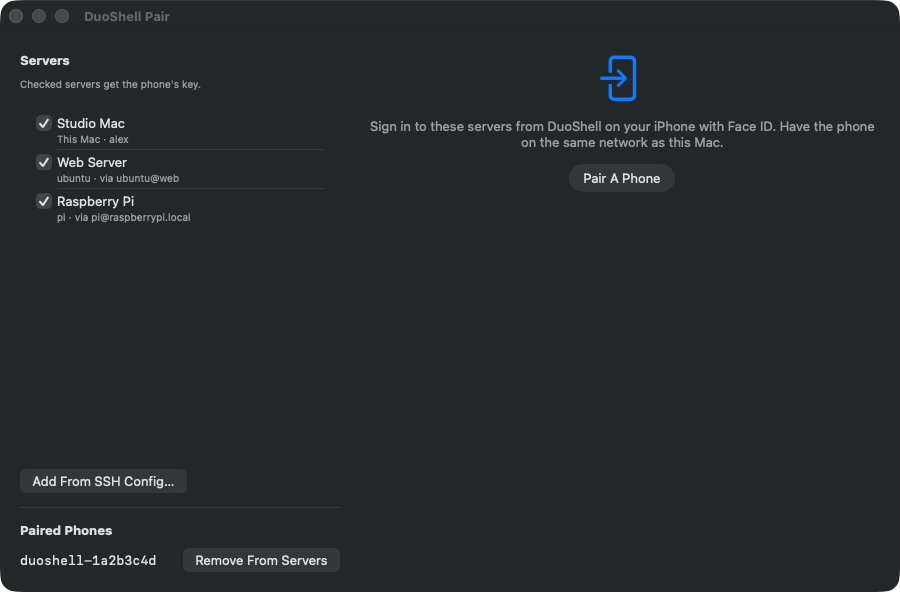
DuoShell Pair 1.0.3
SHA-256 8cacd615089f472eff85fa97f4ee220277273076bc75d4707f38e1d73ad20c27
Install
- Open the zip and drag DuoShell Pair to your Applications folder.
- Open it. It lives in the menu bar (the QR-code icon) and opens its window right away.
- Your Mac is already in the server list. Click Add From SSH Config… to add any other server you reach with
ssh.
Pair Your Phone
- Check the servers you want, then click Pair A Phone.
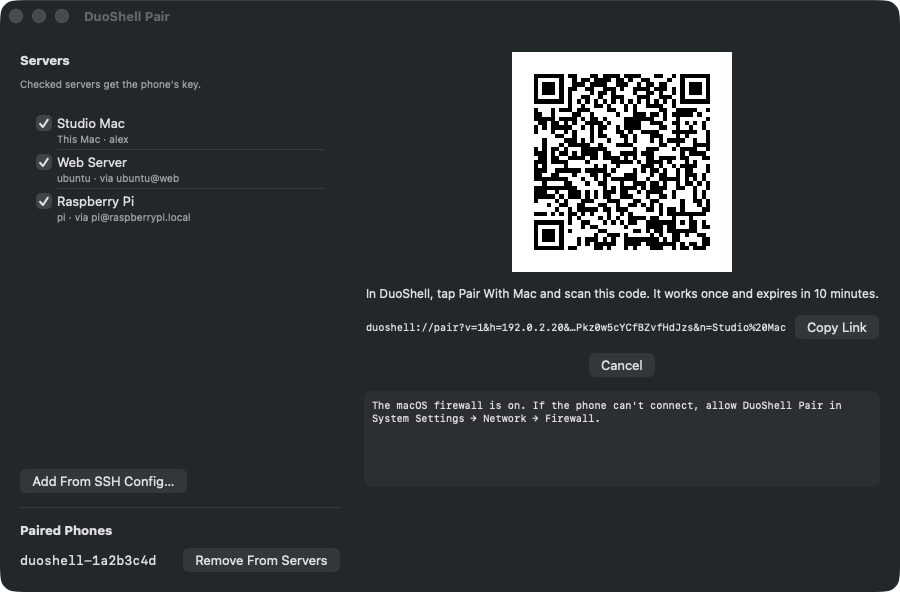
- In DuoShell on your iPhone or iPad, tap the QR button and scan the code. Keep both on the same network.
- Approve any 1Password prompts on the Mac. Each server gets your phone's key, and its identity is recorded for the phone.
The code works once and expires in 10 minutes. To remove a phone later, click Remove From Servers next to it under Paired Phones.
Good To Know
- Your Mac must already sign in to the server. DuoShell Pair uses the same access as
sshin Terminal, including keys in 1Password's SSH agent. - "This Mac doesn't trust the server yet": connect once from Terminal (
ssh you@server) and accept the fingerprint, then pair again. - "Needs sudo": the phone would sign in as a different account than your Mac uses. Add the key line DuoShell Pair shows to that account yourself.
- Firewall: if your phone can't reach the Mac while pairing, allow DuoShell Pair in System Settings → Network → Firewall.
- Why not the Mac App Store? Its sandbox doesn't allow apps to run
sshor read your SSH settings, which is the whole job.