 DuoShell
SSH for iPhone and iPad · Beta on TestFlight
Sign In To Every Server With Face ID.
DuoShell gives your iPhone or iPad its own SSH key, made inside the Secure Enclave. One scan with your Mac puts it on your servers. After that, you tap a server, look at your phone, and you're in.
Setup
One Scan On Your Mac. Face ID From Then On.
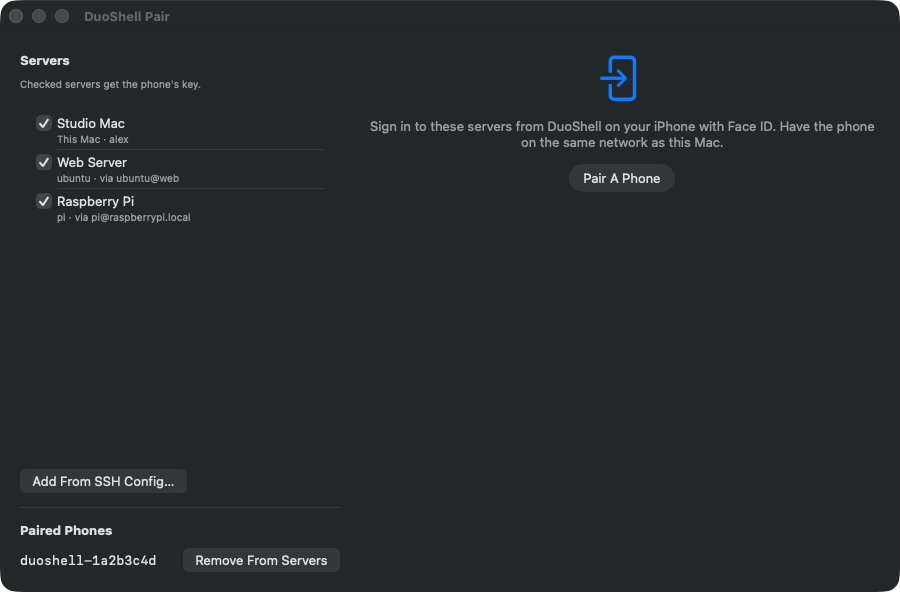
DuoShell Pair, a small free Mac app, uses the SSH access your Mac already has to add your phone's key to each server and record each server's identity.
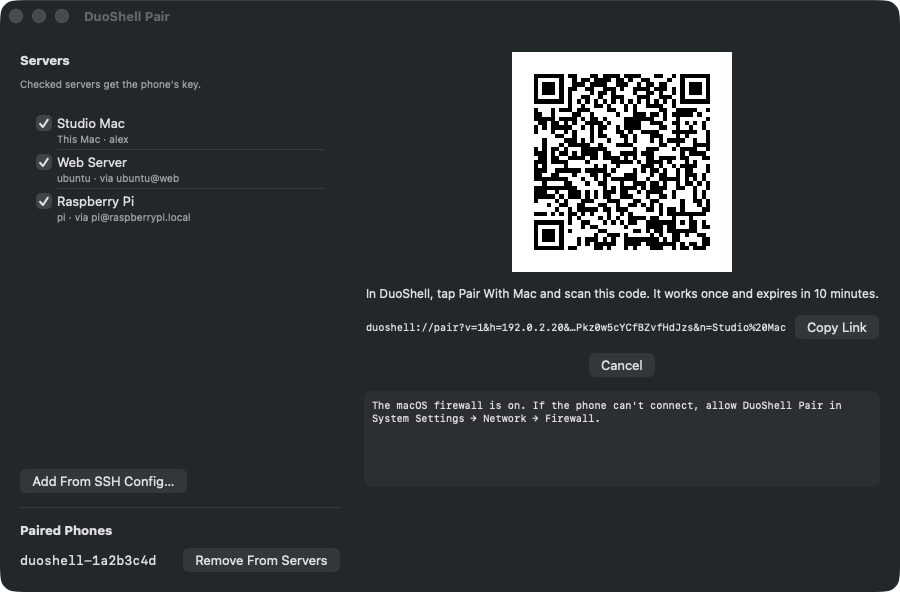
Click Pair A Phone On Your Mac
Check the servers you want. Keys in 1Password's SSH agent work too; approve the prompt on the Mac.
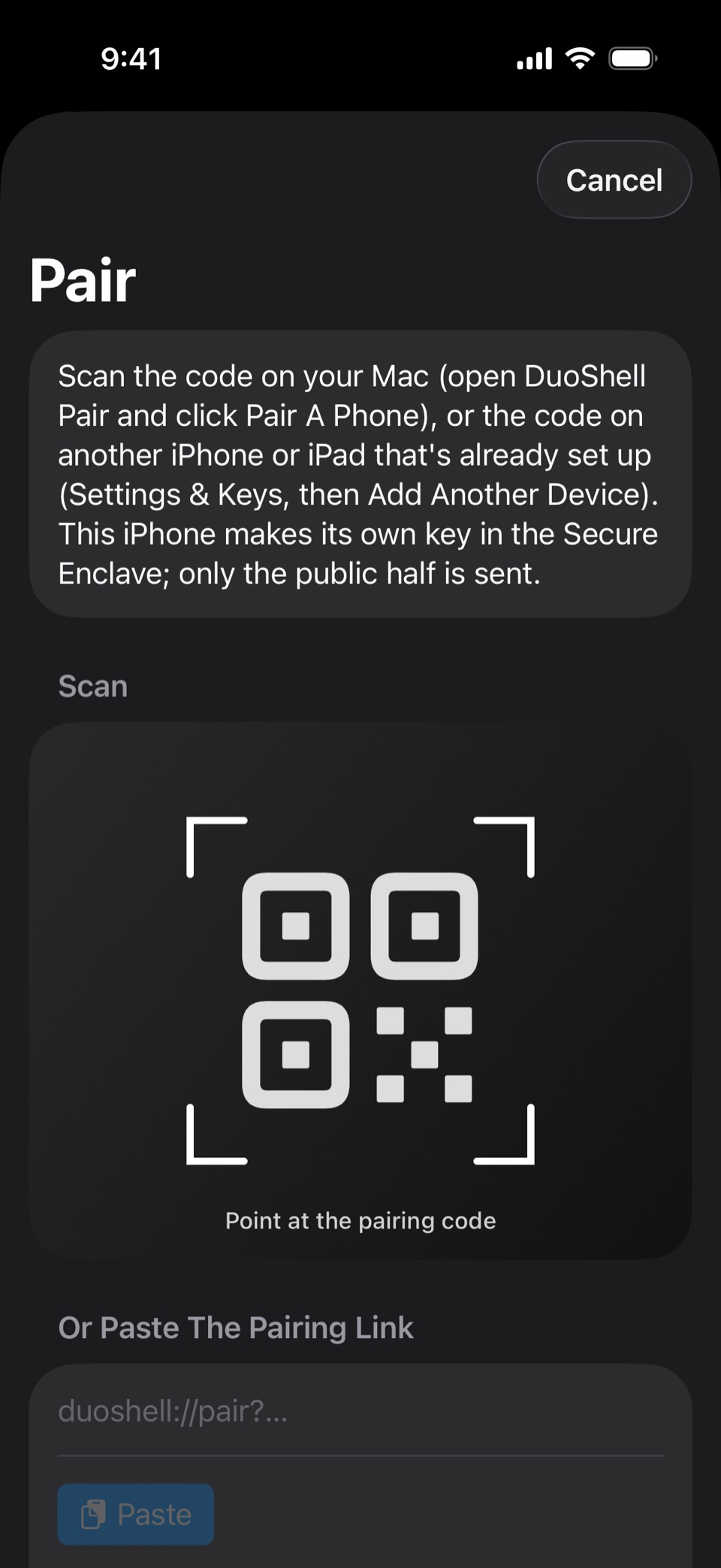
Scan The Code In DuoShell
The code works once and expires in 10 minutes. Every message both ways is signed with it, so nothing else on the network can join in.
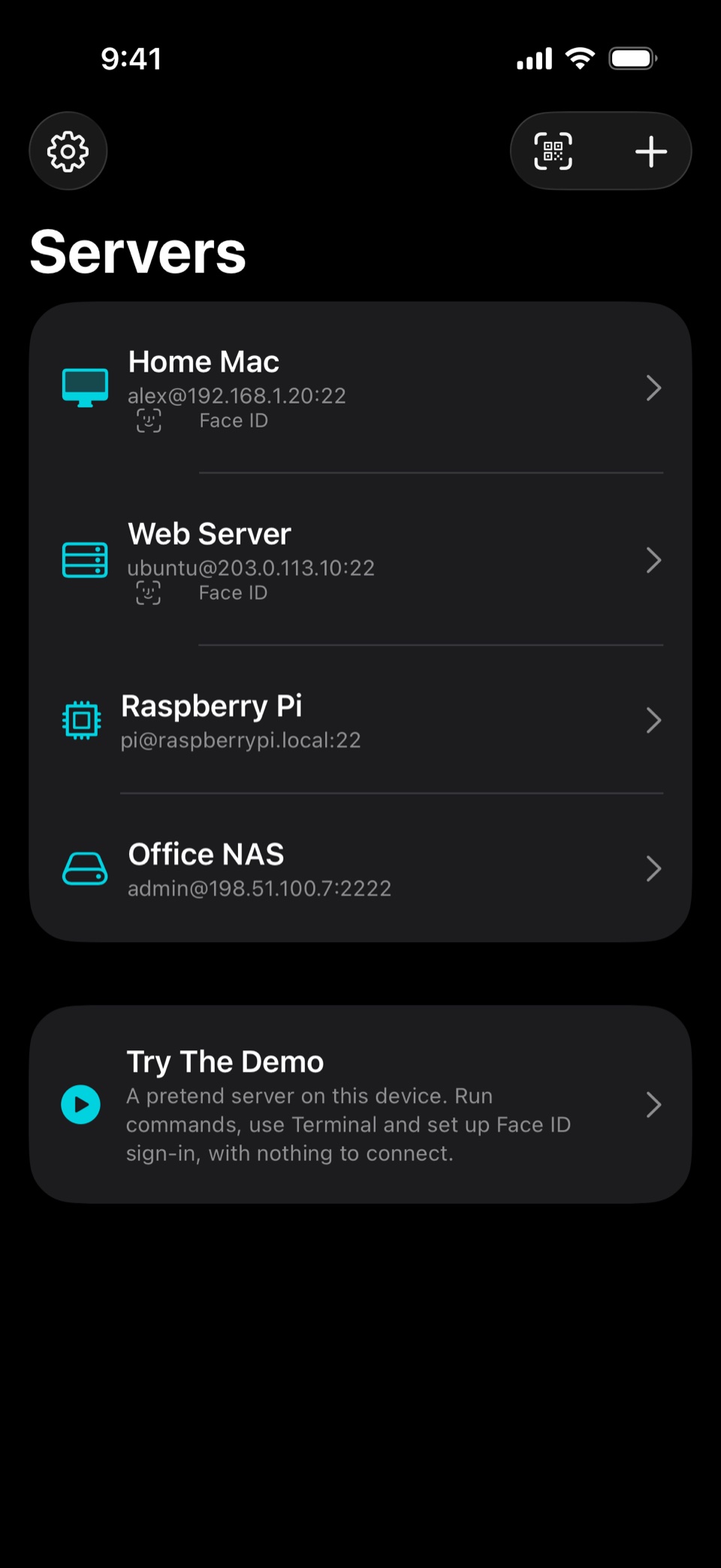
Tap A Server And Look At Your Screen
Face ID (or Touch ID) unlocks the key in the Secure Enclave for that one connection. The private half never leaves the chip.
No Mac? Add a server with its password, connect once, and tap Sign In With Face ID Next Time. How it works
Workspace
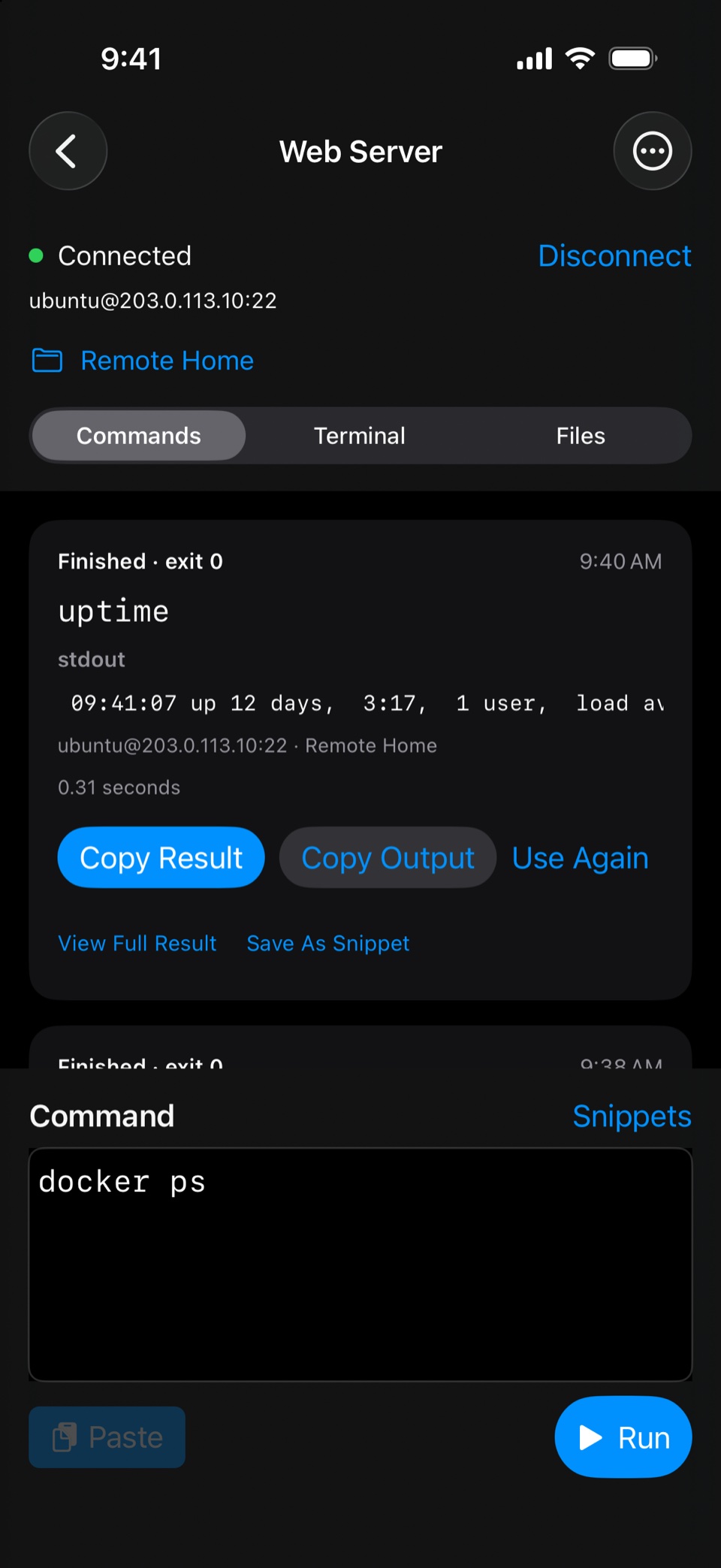
Paste A Command. Copy The Result.
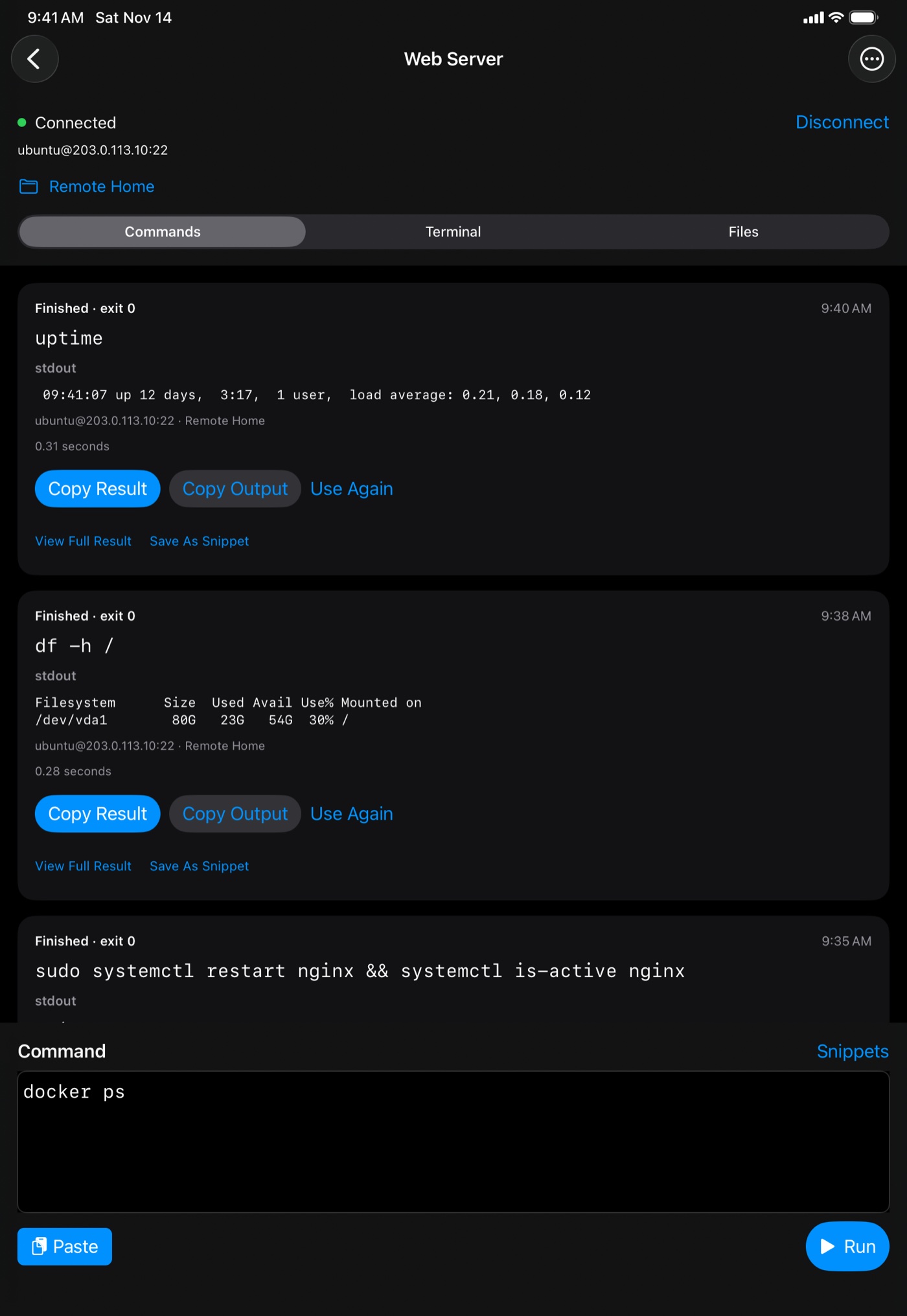
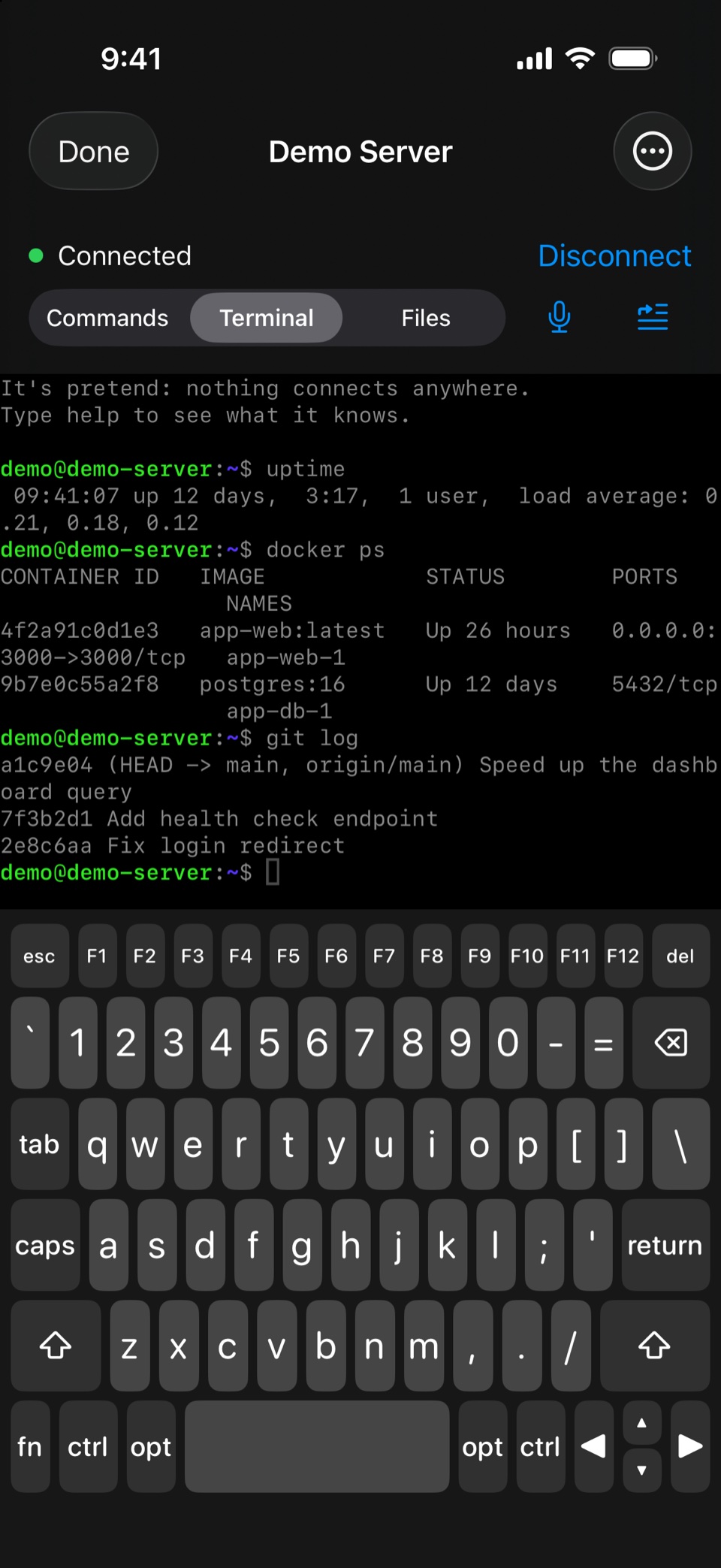
Each run comes back as a card with its output, exit status and timing, ready to copy in one tap. When you need a full shell, the Terminal is one tab away.
Snippets
Save any command you've run with Save As Snippet. Pick it from the menu next time, or let DuoShell type it into the Terminal. Snippets sync between your devices.
Laptop Keyboard
Turn the Terminal's bottom half into a full keyboard with Esc, Control, Option, Tab, arrows and F-keys. Tap Control once for the next key, twice to lock it.
Sessions That Survive
Turn on tmux for a server and a dropped connection costs you nothing. One tap on Reconnect and you're back in the same session, editor and all.
History On This Device Only
Each server keeps its last 30 runs, up to 2 MiB of output each, on this device and out of cloud backup. Clear it whenever you like.
Security
A Key That Can't Leave Your Phone.
There's no password to phish and no key file to lose. Remove one device's access from a server without touching anything else.
- SIGN-IN KEY
- ECDSA P-256, made in the Secure EnclaveIt can't be exported, synced or backed up. Each device has its own.
- UNLOCK
- Face ID, Touch ID or your passcodeAsked once per connection, never stored.
- SERVER IDENTITY
- Recorded at pairing, checked every timeDuoShell refuses to connect if a server's host key changes.
- PAIRING
- One-time code, signed messagesWorks once, expires in 10 minutes.
- PASSWORDS
- Optional, in this device's KeychainNever synced. DuoShell offers to forget one once Face ID works.
- DATA WE COLLECT
- NoneThe app has no account, no analytics and no tracking. Your server list syncs through your own iCloud.
Mac App
DuoShell Pair Lives In Your Menu Bar.
It reads the servers you already reach with ssh, adds your phone's key to the ones you check, and removes a phone from all of them in one click if it's ever lost.
Try It Before You Add A Single Server.
Tap Try The Demo in DuoShell for a pretend server that runs on your phone. Run commands, use the Terminal and set up Face ID sign-in, with nothing to connect.